
The Best Keyboards for Typing Speed in 2026 (Tested & Ranked)
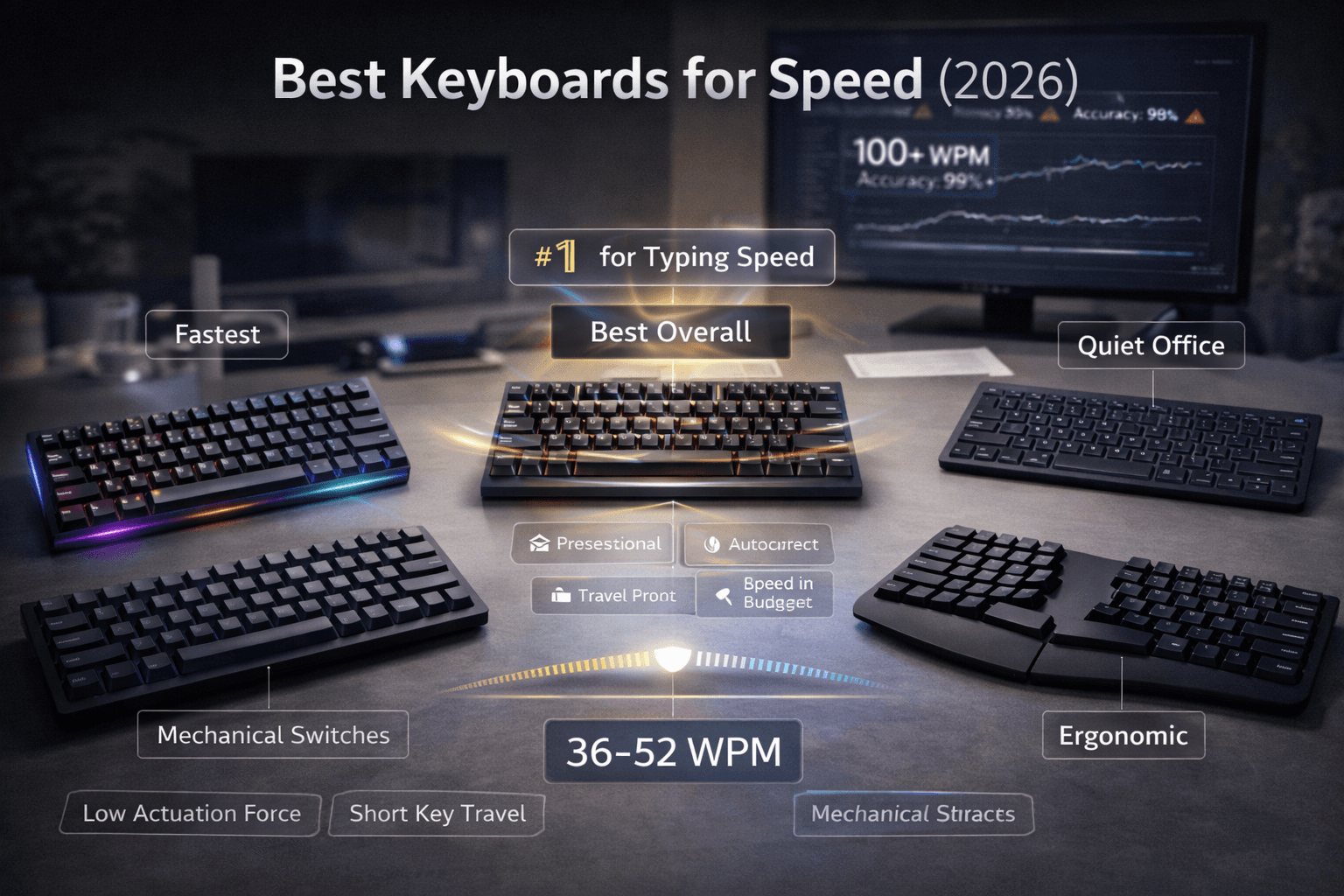
Your technique matters more than your keyboard. But once your technique is solid, your keyboard can meaningfully impact your speed, comfort, and accuracy — and the wrong keyboard can quietly hold you back without you realizing it. This guide breaks down exactly what to look for and which keyboards are worth your money in 2026.
What Makes a Keyboard Fast?
Not all keyboards are built the same. These four factors are what actually separate a speed-friendly keyboard from one that fights you:
Actuation force: How hard you have to press each key to register a keystroke. Lighter switches (around 45g actuation force) let you type with less effort per keypress, which adds up significantly over thousands of keystrokes in a session. The trade-off: very light switches are easier to misfire accidentally, especially when you are still building finger control.
Key travel distance: How far the key physically travels before it registers. Standard mechanical keys have around 4mm of total travel with actuation around 2mm. Low-profile switches cut that roughly in half. Less travel means your fingers spend less time moving up and down — which translates directly to faster burst speed, though some typists find shallow keys less satisfying to use for long sessions.
Switch type: The biggest variable. Mechanical switches provide consistent, predictable feedback that helps your fingers develop muscle memory. Membrane keyboards — the soft, mushy kind under most cheap office keyboards — offer no tactile feedback, making it harder to build reliable speed. Scissor switches, used in laptop-style keyboards like the Logitech MX Keys, fall in between: quieter than mechanical, more consistent than membrane.
Layout and key size: Full-size keyboards force your right hand to travel further to reach the mouse. Tenkeyless (TKL) layouts drop the number pad and bring everything closer. Compact 60–65% layouts go further still. For pure typing — no spreadsheet work — a TKL or compact layout keeps your hands in a tighter, more efficient zone.
Switch Types Explained: Linear, Tactile, and Clicky
If you are shopping for a mechanical keyboard, you will need to choose a switch type. Here is what each one actually feels like to type on:
Linear switches (e.g., Cherry MX Red, Gateron Red): Smooth, consistent keystroke with no bump or click. The key goes straight down and back up. Most speed typists prefer linear switches because there is nothing interrupting the motion. They are also quieter than clicky switches and less fatiguing during long sessions.
Tactile switches (e.g., Cherry MX Brown, Gateron Brown): A small physical bump when the key actuates, giving you confirmation that the key registered without bottoming out. Good for accuracy-focused typists who want feedback without noise. The bump is subtle — some people find it satisfying, others barely notice it.
Clicky switches (e.g., Cherry MX Blue, Gateron Blue): A tactile bump plus an audible click. Gives strong typing feedback and can help you build a rhythmic cadence. Not office-friendly — they are loud. Best for home typists who like the sound and feel of classic mechanical typing.
For pure speed, linear switches have the edge. For accuracy and feedback, tactile. For the typing experience as an end in itself, clicky. Most people trying to improve their WPM do best starting with tactile browns — the feedback helps identify when a keystroke actually registered — then switching to linear reds once their technique is more established.
Keycap Profile: The Detail Most Buyers Overlook
Keycap profile — the shape and height of the keycaps themselves — affects how your fingers find the keys without looking. Most keyboards ship with OEM or Cherry profile keycaps. Both are fine. What to avoid are flat, uniform-height keycaps with no sculpting between rows: they make accurate touch typing harder because your fingers cannot feel the distinction between rows.
If you are buying a budget keyboard and the keycaps feel completely flat and identical across rows, that is worth noting. Replacing keycaps is possible but adds cost. The keyboards recommended below all ship with appropriately sculpted profiles.
Top Keyboards for Typing Speed in 2026
Best Overall: Keychron K2 Pro Switch options: Brown (tactile), Red (linear), Blue (clicky) Price range: ~$90–$100 Best for: Office typing, daily use, touch typists
The K2 Pro hits the best balance of build quality, features, and price. It is a compact 75% layout — smaller than TKL, but still has the function row. Hot-swappable switches mean you can swap out the switches later without soldering. Wireless via Bluetooth and 2.4GHz USB. The build is solid aluminum — no flex, no rattle. If you are buying one keyboard to improve your typing speed and keep for years, this is the one.
Best for Speed: Logitech G Pro X Switch options: GX Brown, GX Red, GX Blue Price range: ~$120–$140 Best for: Speed-focused typists, competitive environments
Originally designed as a gaming keyboard, the G Pro X has near-zero input lag and a solid tenkeyless layout. The GX Red linear switches have light, consistent actuation that suits fast typists well. The build is robust without being heavy. If raw speed is the goal and budget is not a hard constraint, this is the pick.
Best Budget Option: Keychron K3 Price range: Under $80 Best for: New touch typists on a budget
Low-profile switches, compact 75% layout, and wireless connectivity at a price most people can justify without overthinking it. The low-profile switches have shorter travel than standard mechanical, which some typists find faster once adjusted. A strong first mechanical keyboard that does not feel cheap despite the price.
Best for Office / Quiet Environments: Logitech MX Keys Switch type: Scissor (not mechanical) Price range: ~$100–$110 Best for: Quiet workplaces, travel, laptop replacements
If mechanical switches are too loud for your environment, the MX Keys is the best non-mechanical option. The scissor keys are stable, the key shape is slightly concave to match fingertip curvature, and the typing feel is confident without noise. Multi-device Bluetooth pairing lets you switch between up to three computers. It will not give you the same feedback as mechanical, but it is excellent for sustained accuracy in shared spaces.
Best Ergonomic Option: Microsoft Sculpt Ergonomic Price range: ~$80–$100 Best for: Typists with wrist strain or RSI concerns
The split layout separates the two halves of the keyboard so your wrists sit in a more natural position rather than pronating inward. There is also a slight tent angle built in. It takes 2–3 weeks to fully adjust — your speed will temporarily drop — but many typists report significantly reduced wrist discomfort for full-day sessions. Not for speed records, but essential if long-term comfort is the priority.
Comparison table: our top picks at a glance
| Keyboard | Switch / type | Approx. price (2026) | Best for | Trade-off |
|---|---|---|---|---|
| Keychron K2 Pro | Hot-swap Brown / Red / Blue | ~$90–$100 | Daily driver typists; want wireless + mech | 75% layout takes a day to learn if you came from full-size |
| Logitech G Pro X | GX Brown / Red / Blue | ~$120–$140 | Speed-focused sessions; low latency feel | Wired gaming aesthetic; not the quietest |
| Keychron K3 | Low-profile mechanical | Under ~$80 | Budget entry to mechanical | Shorter travel — love it or hate it vs standard mech |
| Logitech MX Keys | Scissor | ~$100–$110 | Offices, travel, silence | Won’t feel like “clicky” mechanical |
| Microsoft Sculpt | Membrane split | ~$80–$100 | Wrist strain, ergonomics first | Learning curve; not for chasing leaderboard WPM |
Wireless vs. Wired: Does It Matter for Typing Speed?
For gaming, wired connections have a measurable latency advantage. For typing, the difference is imperceptible. A wireless mechanical keyboard at 1ms polling is indistinguishable from wired for the purposes of measured WPM. The practical consideration is not latency — it is battery life, interference, and desk cable management.
Bluetooth keyboards are slightly more prone to occasional connection drops than 2.4GHz wireless dongles. If stability is important, look for keyboards that support both (like the Keychron K2 Pro) and use the 2.4GHz mode for daily work.
Keyboards to Avoid
Any keyboard with mushy, unresponsive membrane keys will work against you. The feedback loop between keystroke and registration is delayed and inconsistent, which makes it harder for your fingers to develop reliable muscle memory.
Cheap chiclet keyboards — the flat, shallow plastic keyboards often bundled with desktop computers — are functional but unpleasant for extended sessions. They typically have inconsistent actuation across the keys, and the lack of key travel makes it difficult to develop good rhythm.
Wireless keyboards with significant input lag (usually cheap Bluetooth models in the $15–$25 range) can create a subtle disconnect between your typing rhythm and the characters appearing on screen — which is disorienting during a timed test.
What else to avoid (beyond mushy membranes)
- Uniform flat laptop-style chiclet boards with wobble — inconsistent key feel row to row trains hesitation, not rhythm.
- Ultra-heavy linear switches when you are still learning accuracy — light tactiles forgive fewer fat-finger mistakes early on.
- No-name “gaming” boards with rattling stabilizers — space bar and shift wobble punish speed tests that hit those keys hard.
- Anything that hurts within 30 minutes — discomfort beats marginal actuation gains; ergonomics first if you feel strain.
How to Choose the Right Keyboard for Your Situation
- Under 60 WPM: Technique is everything at this stage. Any decent mechanical keyboard will do. Do not overthink hardware — focus on structured practice.
- 60–80 WPM: You will start noticing switch feel more. Try a linear switch if you have not — many typists find them faster once muscle memory is established.
- 80+ WPM: Switch quality, key stability, and layout genuinely matter. A compact layout and light linear switches are worth the investment.
- Shared office: Skip clicky switches. MX Keys or a Keychron with Reds are solid choices that will not bother the person next to you.
- Wrist pain or long sessions: Consider the Sculpt Ergonomic or look at split keyboards like the Kinesis Freestyle. Speed matters less than being able to type comfortably for years.
Does Your Keyboard Actually Affect Your WPM?
For beginner and intermediate typists, the honest answer is: not much. Technique is the dominant factor at speeds below 70 WPM. At higher speeds — particularly above 80–90 WPM — switch quality, key stability, and layout begin to matter more, both for speed and for long-term wrist health.
The most important thing you can do for your typing speed is practice consistently with correct technique. No keyboard upgrade replaces that. But if you are already practicing regularly and want to remove friction from the equation, the keyboards above are all genuinely good choices that will not hold you back.
Buying checklist (before you click “order”)
- [ ] Layout: Do you need a numpad for work? If not, TKL or 75% often keeps your mouse hand closer and reduces reach.
- [ ] Noise budget: Will a clicky blue switch annoy roommates or video calls? When in doubt, tactile brown or silent linears.
- [ ] Connectivity: Prefer 2.4 GHz dongle or Bluetooth stability? Desk setup or multi-device? Check reviews for wake from sleep quirks.
- [ ] Swap policy: Hot-swap boards let you change switches after you learn what you like — worth paying a little more once.
- [ ] Keycap quality: Shine-through ABS wears fast; PBT lasts longer if you type daily.
- [ ] Return window: Give yourself 14 days of real work — gaming reviews rarely match long-form typing fatigue.
Test your current speed before upgrading →
About the author
Louis
Louis is a developer and productivity tools creator who built Typingverified to help professionals build verifiable typing skills. He writes about typing techniques, productivity, and keyboard ergonomics based on hands-on testing and research.
Email: support@typingverified.com
More articles
The Complete Beginner's Guide to Touch Typing in 2026 (Start to Certificate)
Everything you need to know about learning touch typing in 2026, from your first home-row practice to earning a professional typing certificate.
Typing Wrist Pain: What Causes It and How to Type Without Hurting Yourself
Wrist pain from typing is preventable. Learn the real causes of typing-related wrist pain and the setup, technique, and stretching fixes that actually work.
30 Typing Practice Sentences That Will Improve Your WPM Fast
Looking for typing practice sentences that actually improve your speed? Here are 30 carefully chosen sentences targeting accuracy, speed, and common word patterns.