The Complete Beginner's Guide to Touch Typing in 2026 (Start to Certificate)
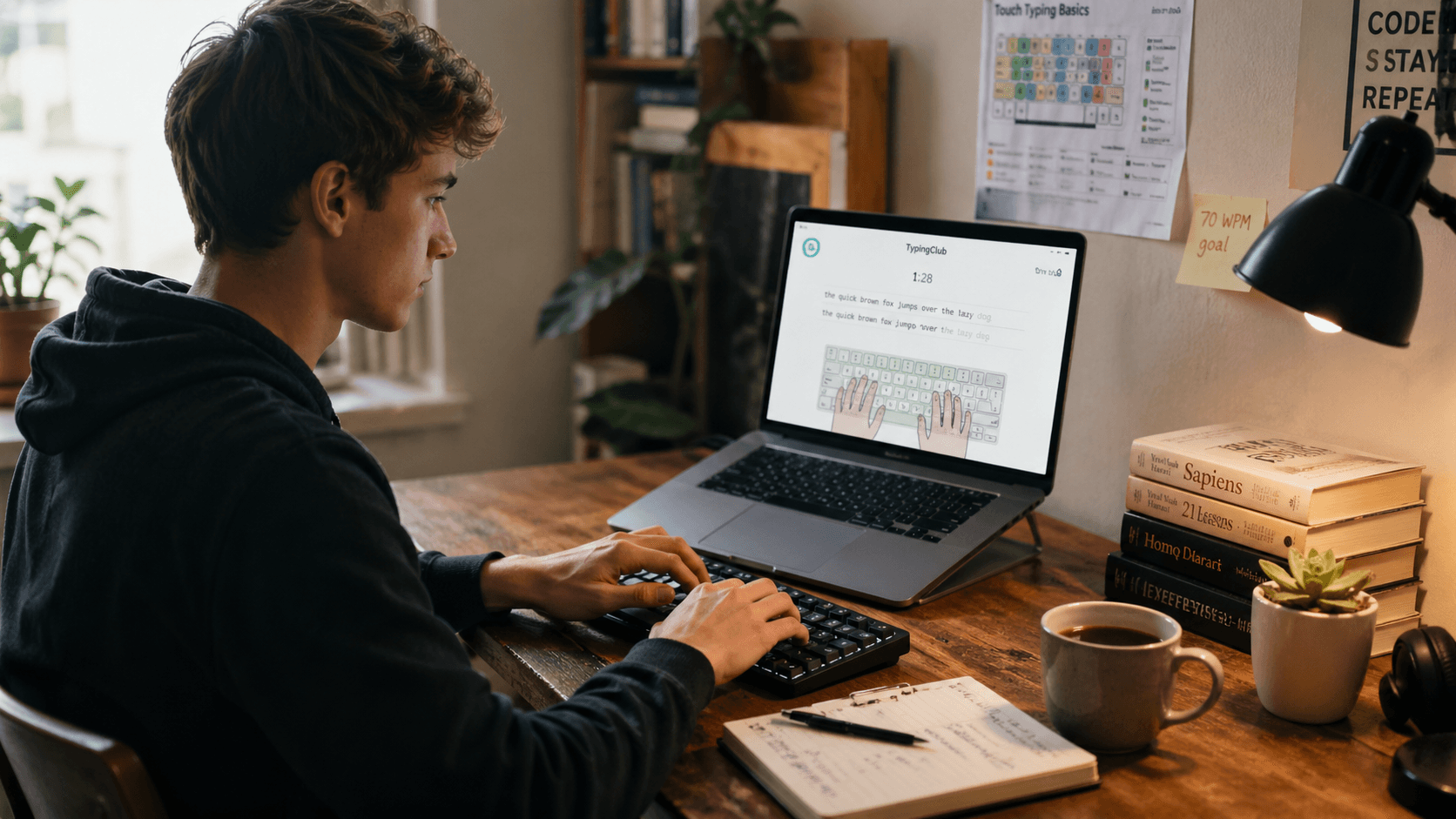
If you have never learned to type properly, this is the guide you need. If you have been typing for years using two fingers and peeking at the keyboard, this is the reset you have been putting off. Touch typing is one of the highest-return skills you can develop as a professional. It takes two to three months to learn correctly, costs nothing, and will save you hundreds of hours every year for the rest of your working life.
Here is everything you need — from your first home-row session to earning a professional typing certificate.
What Is Touch Typing?
Touch typing is a method of typing that uses all ten fingers, each assigned to a specific zone of the keyboard, without looking at the keys. The name comes from typing by touch — by feel — rather than by sight.
The goal is to make typing unconscious. When your fingers know exactly where every key is without your eyes needing to confirm it, your brain is freed from the mechanical process of hunting and pecking and can focus entirely on what you are actually trying to write. That shift — from conscious key-finding to automatic keystroke — is what separates a 40 WPM typist from a 75 WPM typist. The faster typist is not necessarily smarter or more dexterous. They have simply made the physical process invisible.
Why It Matters More Than Ever in 2026
Despite the rise of voice input and AI writing tools, keyboard typing remains the dominant input method for professional work. Emails, reports, code, database entries, customer communication, and documents still flow through a keyboard. Voice input is useful for certain contexts, but it cannot replace the keyboard for editing, structured writing, or any situation where precision and silence both matter.
The average professional spends six to eight hours per day on a keyboard. At 40 WPM, a full work year involves enormous amounts of typing time. At 75 WPM, the same volume of output takes roughly half the time. Over a 40-year career, the difference runs into thousands of recovered hours — time that compounds into more output, more attention for higher-value thinking, and significantly less fatigue.
Typing speed is also increasingly visible on resumes. Remote work has made written communication the default, and fast, accurate typing is a measurable professional skill. A verified typing certificate gives you something concrete to point to.
Before You Start: What You Actually Need
You do not need a special keyboard. Any keyboard will work for learning, though a mechanical keyboard with moderate tactile feedback makes it easier to feel when a key has registered, which helps beginners build confidence. If you already have a laptop keyboard, use it.
You do need patience for the first two weeks. Your speed will drop significantly when you switch to proper touch typing — from whatever you were doing before to the structured method. That drop is not a sign of failure. It is the unavoidable dip that comes with overriding established muscle memory. Push through it. The speed returns quickly, and when it does, it climbs past your previous ceiling.
Set aside 15 to 20 minutes per day. Short, consistent sessions outperform long, sporadic ones. Motor skill development requires repetition spaced over time, not volume crammed into single sessions.
Step 1: Master the Home Row
Place your left hand fingers on A, S, D, F. Place your right hand fingers on J, K, L, and semicolon. Your thumbs rest lightly on the space bar.
Feel the small raised bump on the F and J keys. Those bumps are tactile markers that exist specifically so your fingers can find home position without looking. Every time you finish typing a word or pause, your fingers should return to this position automatically. This is the most important habit in touch typing — the home row is your anchor.
Spend your first two or three practice sessions doing nothing but home-row exercises. Type combinations of A, S, D, F, J, K, L, and semicolon until your fingers settle into the position naturally. It sounds boring. Do it anyway. Skipping this step creates gaps in your foundation that will limit your speed for months.
Step 2: Learn the Full Keyboard Zones
Once the home row is comfortable, add the rest of the keyboard one row at a time. Each finger is responsible for a specific zone:
- Left pinky: Q, A, Z and the keys to their left
- Left ring finger: W, S, X
- Left middle finger: E, D, C
- Left index finger: R, F, V, T, G, B
- Right index finger: Y, H, N, U, J, M
- Right middle finger: I, K, comma
- Right ring finger: O, L, period
- Right pinky: P, semicolon, forward slash, and keys to their right
- Both thumbs: space bar
Print or bookmark a finger-assignment chart and keep it visible during practice. Spend at least one full week on the top and bottom rows before trying to type sentences. The goal at this stage is not speed — it is having the correct finger reach every key without hesitation.
A common mistake is to let a stronger finger substitute for a weaker one when time pressure builds. Your index fingers are naturally stronger and faster than your pinkies, and your brain will try to use them for keys that belong to your ring or pinky fingers. Do not allow this. Every substitution you permit becomes a habit that costs you speed later.
Step 3: Work Through Structured Lessons
Random practice produces random results. Structured lessons produce measurable, predictable progress.
A good lesson sequence introduces new keys gradually, with accuracy requirements at each stage before you can advance. This structure prevents you from progressing with broken form — a failure mode that plagues self-taught typists who push for speed before their technique is clean.
Typingverified's 10-lesson curriculum is built around this principle. Each lesson has task-level accuracy gates. You pass a task at 90% accuracy or better, or you repeat it. This is not arbitrary strictness — it is the mechanism that ensures your muscle memory is being laid down correctly rather than just quickly. Incorrect patterns practiced at speed become very hard to undo.
Step 4: Know What to Expect Week by Week
Understanding the learning timeline prevents the discouragement that causes most beginners to quit.
Weeks 1–2: Everything feels slow and unnatural. You are building new neural pathways while actively fighting old habits. Expect speeds of 15–25 WPM. This is normal. Stay the course.
Weeks 3–4: Your fingers begin to find keys without conscious thought. Speed climbs to 25–40 WPM. You stop needing to look at the keyboard for most common letters.
Weeks 5–8: You reach and then surpass your pre-touch-typing speed. Most learners hit 45–55 WPM by the end of this phase and begin to feel genuinely fluent. Typing starts to feel less like a task and more like an automatic extension of thinking.
Months 3–6: With regular daily use, speed continues climbing without dedicated practice. 65–75 WPM is a realistic target for most people by the end of this phase.
Step 5: Take Regular Timed Tests
From week two onward, take a full 60-second timed test at least once per day and record your score. Watching your WPM climb week over week is one of the most motivating parts of the process, and the data helps you identify exactly where you are losing speed.
If your accuracy is consistently below 95%, you are practicing too fast. Slow down until accuracy stabilizes. Speed without accuracy is not useful — it just means you are efficiently producing text that will require going back and correcting.
Step 6: Common Mistakes That Slow Progress
Looking at the keyboard. Every time your eyes drop from the screen, you break your reading flow and lose the buffer of words ahead that fast typists depend on. Cover your hands with a cloth if you need to force the habit.
Practicing at maximum effort every session. Pushing for top speed in every session reinforces errors along with speed. Most practice should be done at 80–85% of your maximum, with 97% or higher accuracy as the target.
Skipping weak keys. Every typist has specific letters or combinations that consistently slow them down. Identify yours and drill them specifically at the start of each session rather than avoiding them.
Ignoring posture. Wrist tension and poor desk ergonomics create a hard ceiling on speed and increase the risk of repetitive strain injury over time. Your elbows should be at roughly 90 degrees, your wrists should hover — not rest — above the keyboard, and your screen should be at eye level.
Step 7: Earn Your Certificate
Once you complete all 10 lessons and can pass a 60-second test at 35 WPM with 95% accuracy while logged in, you can download your Typingverified certificate. The certificate includes your name, verified WPM score, accuracy percentage, and issue date.
It is designed to be professional and shareable — something you can add to a resume, a LinkedIn profile, or a job application as third-party evidence of your typing ability. For remote work, data entry, administrative roles, or any keyboard-intensive position, it gives you something concrete to show that most applicants cannot.
Step 8: Keep Improving After the Certificate
Earning the certificate is not the finish line. It is the point where touch typing becomes a durable, permanent skill. Once your technique is solid, your speed continues climbing simply through daily use — every email you write and every document you draft reinforces the patterns further without any additional structured effort.
Most certificate earners reach 65–80 WPM within six months of completing the program. If you want to push toward 90 or 100 WPM, targeted speed drills and weak-key training are available in the practice section to take you further.
The skill you build here does not depreciate. Unlike most productivity tools that become obsolete as software changes, typing speed and accuracy stay useful for as long as keyboards exist. Invest the two to three months. You will not regret it.
Start your first free lesson now →
About the author
Louis
Louis is a developer and productivity tools creator who built Typingverified to help professionals build verifiable typing skills. He writes about typing techniques, productivity, and keyboard ergonomics based on hands-on testing and research.
Email: support@typingverified.com
More articles
Typing Wrist Pain: What Causes It and How to Type Without Hurting Yourself
Wrist pain from typing is preventable. Learn the real causes of typing-related wrist pain and the setup, technique, and stretching fixes that actually work.
30 Typing Practice Sentences That Will Improve Your WPM Fast
Looking for typing practice sentences that actually improve your speed? Here are 30 carefully chosen sentences targeting accuracy, speed, and common word patterns.
The Best Keyboards for Typing Speed in 2026 (Tested & Ranked)
Does your keyboard affect your typing speed? Yes — significantly. Here are the best keyboards for fast typing in 2026, ranked by performance and value.